Showing posts with label LEARNING AND TEACHING. Show all posts

Bring Your Own Device (BYOD) program

St Mary's has a compulsory Bring Your Own Device Program (BYOD).

Students in grades 2, 3, 4, 5 and 6 are required to bring a device every day to school. 

BYOD Starts for Year 2 in Term 2.

Supported Devices

Devices
(Not Supported) 

☑️Tech to-do list before your child brings their device to school. Please read the google account knowledgebase

  1. Please note: Screen Sizes of 14” or above are not recommended.

  2. Windows Laptops (8gb Ram Minimum, Brands such as Lenovo, Acer, Dell, etc.) Touch Screens are not recommended as they are easily broken. Replacement screens can cost as much as a new device. 2. Apple Macbook Laptop (8gb Ram Minimum). 3. Chromebooks

Please purchase a padded case for all devices. ‘Cover Anywhere’ Insurance The College accepts no responsibility if your child’s device is lost or damaged. We strongly recommend you insure the laptop as part of your household contents policy. Most insurers offer add-ons such as “cover anywhere” insurance for breakage or loss on a computer.

iPads

Samsung Tablets


Before your child brings their device to school, please read the Google account knowledgebase.


Windows and Mac Laptops

1. Download the Google Chrome Browser.


2. Use your child’s school account to sign in to the chrome browser.  When prompted, press “Save password” on your child’s device.


3. Before your child brings their device to school, please read the Google account knowledgebase.


Chromebooks

Ensure they run  Chrome OS v123)

Use your child’s school account to sign in to the chromebook. When prompted, press “Save password” on your child’s device.


Typing Club Help Files

Log in to Typing Club using this address

https://stmarysns.typingclub.com/

Click sign in using your Google account


St Mary's Catholic Primary School, North Sydney Typing Club Login Help Video

St Mary's Catholic Primary School, North Sydney Typing Club Login Help Video

Student Login for Typing Club

https://stmarysns.typingclub.com/


A help video to assist students to log into Typing Club using their Google/CeNet account.


Typing Club - Login Help Video 

Dear Parents,

As you are aware, in response to enquiries on how we can support students to learn to type, we have purchased Typing Club for all students at St Mary's NS.

I have produced a video to assist students and parents to support their child to access their account.

There is great excitement amongst the students from Kindergarten through to year 6, who are keen to learn how to type and use the keyboard properly.

The idea around the program is that students can work through their online lessons at home or school independently and at their own pace. It is designed so that students can work ahead if they choose, which supports individualised learning and differentiation.

It is at the discretion of class teachers as to how they implement Typing Club in their busy curriculum. Some classes may allocate time for Typing Club during class or set it as part of your child's homework tasks.

It would be excellent if each child could complete the lessons for their grade level within the 12 month period. A child can progress to a higher grade level if the course is completed. Let's encourage everyone to learn how to type correctly.

Please contact myself or your child's teacher if you have any further enquiries.

Kind regards,

Mr Timothy Butt
eLearning Educator

https://www.typingclub.com/
A short video (11 minutes) going through the teacher and student experience on TypingClub
Another short overview of TypingClub's School Edition
Online tutorials and various topic specific short videos

St Mary's North Sydney - Students can use technology in many ways

Some examples of how devices are used at St Mary’s Catholic Primary School
Kindergarten
Kindergarten use ipads for writing, mathematics using a variety of apps. Kindergarten students access learning resources in an app called Google Classroom. Teachers individualise learning for their students and provide video links and animations for them to watch for History and Geography lessons. Students also receive their google accounts and can begin to explore these with their parents. A BYOD device makes this easier as they can be logged in to all of their apps using their secure account. Students begin to use their devices to create multimedia such as video and audio recordings which assist with talking and listening. These tools are used by teachers and students.
Years 1 & 2 and onwards to 3, 4, 5 and 6
As children move through the grades, students use their google accounts more regularly. They use these for mapping, presentations and writing. They use google docs to write different texts such as information reports and they insert pictures. Students research using links supplied by their teacher which can be emailed to them and save time. They gather information from a variety of sources including carefully selected websites and videos. Students share their work with their teacher and their peers. They can also collaborate on the same document using different screens.  This is particularly useful when gathering information in teams. Students also use spreadsheets and tables to record data.
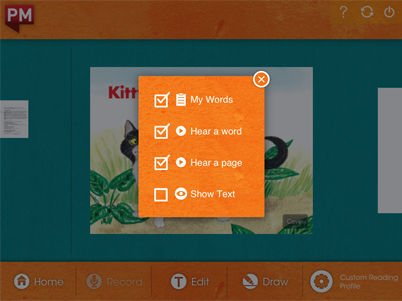
In the early years, Students use ipads to access their eReaders for literacy block. They have 5 personal accounts for Google Apps for Education, Mathletics and PM ecollection readers. They use a website called Skwirk to access learning resources such as videos, animation and text that is specifically written for the child at their reading and comprehension level. In 2017 students will begin using their Clickview account. ClickView offers thousands of educational videos designed to support the curriculum and engage students. Students begin to create multimedia content and digital products to show their learning. This is shared with their teacher. Students enter competitions creating movies and use their devices to produce digital art. Students also work through specially designed learning sequences using online resources. As with all learning at St Mary’s, there is a personalised approach to digital learning, allowing for student personal choice and product.
Code Clubs In 2016, a code club led by Parent Volunteers explored coding for students from Kindergarten to Year 2. Students have worked on weekly projects, In the upper grades children have explored creating environments and creating original characters to place in their projects.

St Mary's NS launches PM Readers E-Collection K-2

Ipad accounts for all students in Kindergarten to Year 2 give students access to 200 ebooks.
Cengage Learning is launching readers up to level 30 and ebooks available for all platforms later this year.


Student's receive a Cloudshare Google Account to store their digital work.

Each child receives a Cloushare Google Account when they start school.
The Cloudshare account includes the following:
  • an email address and inbox
  • a publishing app called Docs (similar to Microsoft Word)
  • a slide presentation app (similar to Microsoft PowerPoint)
  • a storage storage facility called Google Drive with 25 GB of storage space
    (similar to Microsoft One Drive)
  • a spreadsheet app called Sheets (Similar to Microsoft Excel)
  • many other apps and tools where students can store, share and publish their learning. They will use different apps for different learning tasks as they progress through their year levels.


The account will stay with them for the duration of their time attending within the Sydney Catholic school system. This will become a record of their learning from Kindergarten to Year 12. Your child’s teachers have the same google account as well. Some students in Year 1 and 2 may have had access to this account previously using it at school with a generic password (all students the same).


During Kindergarten to Year 2, students begin to use this account occasionally for learning with its use increasing in the upper primary years. With a BYOD program, it is important to have a secure personal environment for students to store their work. This account enables them to login to access safe environments set up by their teacher when needed.


We have a special request that you please do not change your child's password once you have logged into the account. Your child's teacher will securely store a copy of your child's password in the event there is an issue, as it is much easier for it to be changed by the ICT coordinator, Mr Butt. He will be responsible for ensuring these passwords are administered correctly and changed every six months. A series of three challenge questions are in place; one including the seven digit student number to which Mr Butt has access. In the event a student can't login, it is much easier if we can solve a password issue at school level. Logging in can be a source of frustration for younger students as they learn their email address and password but after a few months, they become very good!


For any questions, technical enquiries or trouble logging in please contact us using the form on the website.
The following pages explain the account in more detail including login information.


We appreciate this is a significant step for young children and appreciate the partnership, feedback and support of all families. Please explore the account and ask questions. More information is available on the BYOD site accessible from the St Mary’s News site.

Cloudshare Summary


We gratefully acknowledge Elsie Hutton in Year 3 and her family for allowing us to use her Google Account as an example for students and parents.


The most reliable browser for the cloudshare account is Google Chrome.


Logging On


Your child's full cloudshare account is a google account, however It does not have a gmail.com address. It is administered and given to you through a partnership between Google and  Sydney Catholic Schools. Their email address has been automatically generated by the system.


The email address usually is:


On occasion, their name may be used already so there are variations to this, particularly if their surname is long or hyphenated. A number may be added or an initial used instead of a name.


The password Is:
Their student identification number followed by their initials. This password has been generated by the ICT coordinator. We request that parents or students, please do not change this number as it makes it easier for the administrator to reset their password if there is an issue. The password will be reset every six months by the school administrator (Mr Butt). The passwords will toggle between the same student number with their initials changing from lowercase to all capitals and then back again every six months.


When logging in you can access this page simply by going to www.google.com.au and click sign in.


In this field you type your child’s full email address firstname.lastname@sydstu.catholic.edu.au. Click next.


In the boxes below, please place in their username only. This is usually first name.last name (do not put the email address in here). The next field is their password as per the slip of paper. Please select the Sydney option. They can access this account at home and at school.


The email account


Suggestions around email.
  • Email is beneficial in lower grades to allow them to log into safe classroom environments created by their teachers such as Google Classroom.
  • Email is mainly used for learning when students are collaborating for their learning.
  • The teacher may on occasion ask students to send an email during the lower years to them. Never to an outside organisation. Students need to direct any enquiries via their teacher.
  • Email cannot be blocked. In fact none of the google apps can be blocked or removed from their account as the account is the same for all students from Kindergarten to Year 12. This is a system decision.
  • Students should never email anyone outside of the Sydney Catholic schools system using this email address. This includes signing up for user accounts to other websites.
  • This is very rare, however, in the event of any activity that is of concern (eg bullying comments), the Principal and ICT coordinator will have access to deleted email history via application to Sydney Catholic Schools and google.


Google Apps


Most of the work they will complete within the chrome browser is contained in these nine dots at the top of the web account.


A quick summary of some apps
  • a publishing app called Docs (similar to Microsoft Word)
  • a slide presentation app (similar to Microsoft PowerPoint)
  • a storage storage facility called Drive with 25 GB of storage space
    (similar to Microsoft One Drive)
  • a spreadsheet app called Sheets (Similar to Microsoft Excel)
  • Students are encouraged not to use and never sign in directly to Youtube in their account. They will usually be assigned videos to watch by their teachers if applicable to their learning through a link.
  • There are many other apps that are being added as well. Many apps they will not use until Upper Primary School.


Google Drive
Google Drive is cloud based storage. Google Drive is where all of their personal document files will be kept. It comes preloaded with many folders categorised by subject area. Students are encouraged to file their work in these folders. It's a great way to  encourage good habits of filing. They can also power search for their files so it is important that we encourage correct naming of files as well.


Benefits for students having their own Cloudshare account are;

  • All of their work automatically saves on whatever device they are using as long as they have an Internet connection.
  • The autosave function also has revision history so, if they accidentally delete all of their work they can go back in time to when it was working correctly.
  • Students can share documents and collaborate on work with other students. This is particularly useful when they are collaborating, for example, on a speech for debating or a group presentation for the class. They can work on the same document.
  • Photos can be backed up automatically if the correct settings are placed.
  • Teachers can share safe and relevant learning links with students using the "Google classroom app".
  • There are free apps available on the iTunes and Google Play stores for tablets.
  • St Mary’s School is committed to becoming eSmart accredited over the next two years to support and educate students on cybersafety.
  • It supports efficient work flow and quick access to their files.

Learning in a BYOD Program

Learning in a BYOD Program ...

Learning in a BYOD classroom provides significant opportunities for change. This is not because a device is being used but rather because the relationships between the teacher and student changes. Students in a 1:1 environment can develop a more independent personalised learning where collaboration and negotiation with the teacher enables a deeper more authentic engagement.
 Characteristics of this include;
  • interactive and differentiated learning
  • student led learning in a variety of learning styles
  • learning outside the classroom
  • access to a wealth of resources and information
  • access to in-built camera and microphones
  • apps that make these devices exceptionally powerful.
  • Mobile devices are no longer just for consuming media, they allow students to document, edit and create - demonstrating their knowledge and understanding of specific subject matter.
Australian Curriculum: ICT General Capabilities


The Australian Curriculum and the ICT Capabilities give new insights into the digital knowledge, skills and attitudes that our students will need in their lives.The move to BYOD gives us further opportunities to evaluate our teaching and learning practices in order to develop students who are collaborative, reflective, intrinsically motivated, self-determined and empowered to learn. The personalised learning that often characterises BYOD should be reflected in the changes to our teaching and learning practices within the context of the Australian Curriculum.

Catholic Education Office BYOD PROJECT:

The Bring Your Own Designated Device (BYODD) project was introduced at four Archdiocesan Primary Schools in 2013. During 2013 three online surveys were conducted with teachers, students and parents to assess the success of the project in the four pilot schools.

All four schools reported that the use of the iPad to support contemporary pedagogy resulted in:
student learning outcomes improving
improved and increased student engagement
underachieving students have blossomed
increased opportunities for cooperative learning and peer feedback
greater opportunity for sharing of student’s work between home and school
students becoming more independent learners

What Does the Research Say?

.KARSENTI, T. "The iPad in education - Thierry Karsenti." 2013. <http://www.karsenti.ca/ipad/pdf/iPad_report_Karsenti-Fievez_EN.pdf>


"Among the main benefits of using a touchpad in class, we found the following benefits for students.

Increases motivation (see Kinash, Brand, & Mathew, 2012; Sachs & Bull, 2012; Wainwright,2012);

Facilitates access to, management of, and sharing of information (see Babnik et al., 2013; Fri-Tic, 2012; Hahn & Bussell, 2012; Martin, Berland, Benton, & Smith, 2012);

Fosters student learning and performance (see Churchill, Fox, & King, 2012; Fernández-López, Rodríguez-Fórtiz, Rodríguez-Almendros, & Martínez-Segura, 2013; Isabwe, 2012; Lau & Ho, 2012; McKechan & Ellis, 2012; Ostler & Topp, 2013; Rossing, Miller, Cecil, & Stamper, 2012);

Allows a wider range of teaching strategies (see Fernández-López et al., 2013);
Fosters individualised learning (see McClanahan, Williams, Kennedy, & Tate, 2012; Wasniewski, 2013);
Improves the reading experience (see Fernández-López et al., 2013; Huber, 2012; Sloan, 2012; Zambarbieri & Carniglia, 2012);
Encourages communication and collaboration among students and between teachers and students (see Geist, 2011; Henderson & Yeow, 2012; Hutchison, Beschorner, & Schmidt-Crawford, 2012);

Improves computer literacy skills (Huber, 2012; Killilea, 2012);

Nurtures students’ creativity (Sullivan, 2013);

A highly portable tool (see Henderson & Yeow, 2012; Hill, Nuss, Middendorf, Cervero, & Gaines, 2012; Kinash, Brand, Mathew, & Kordyban, 2013; Villemonteix & Khaneboubi, 2012; Williams, Wong, Webb, & Borbasi, 2011);

Facilitates student assessment (Alberta Education, 2012; Isabwe, 2012; McKechan & Ellis, 2012);

Improves the quality of pedagogical support (Murray & Olcese, 2011);

Facilitates learning how to write (Murray & Olcese, 2011);

Makes it easier to organize schoolwork and assignments (Churchill et al., 2012);

Students can make versatile and vivid multimedia presentations (Murphy & Williams, 2011);

Signifcant benefts for students with learning problems (McClanahan et al., 2012).